Font
A Font asset renders text through an Element component of type Text. Add an Element component to an Entity, set its type to Text, then drag the Font asset onto the component's Font slot.
Fonts are stored as multi-channel signed distance field (MSDF) atlases rather than fixed-size bitmaps, so one asset stays crisp at every size and you only need one per typeface. The technique suits some typefaces better than others.
Importing a font
Drag a .ttf, .ttc, .otf or .dfont file into the Editor. The atlas is generated in your browser, and the result is a folder named after the file containing four assets:

| Asset | Type | What it is |
|---|---|---|
myfont.otf | Source | The font file you uploaded, kept so the atlas can be regenerated. Shown with a dashed outline. |
myfont.json | JSON | The MSDF descriptor — glyph metrics and atlas layout. |
myfont.png | Texture | An atlas page. Larger character sets spill onto myfont1.png, myfont2.png, and so on. |
myfont.otf | Font | The Font asset itself. It only references the JSON and textures, so the atlas is never duplicated. |
The source file and the Font asset share a name. The one to assign to a Text element is the Font asset — the one that previews the typeface in its thumbnail.
An import includes printable ASCII (0x20–0x7E) to begin with. Add characters and regenerate as described below.
Repointing a reference, or editing the JSON or texture asset it points at, rebuilds the font straight away — text in the viewport and asset thumbnails update without reloading the Editor.
Engine, React and Web Components projects can generate the same kind of asset without the Editor using font-tools, which runs the same generator.
Properties
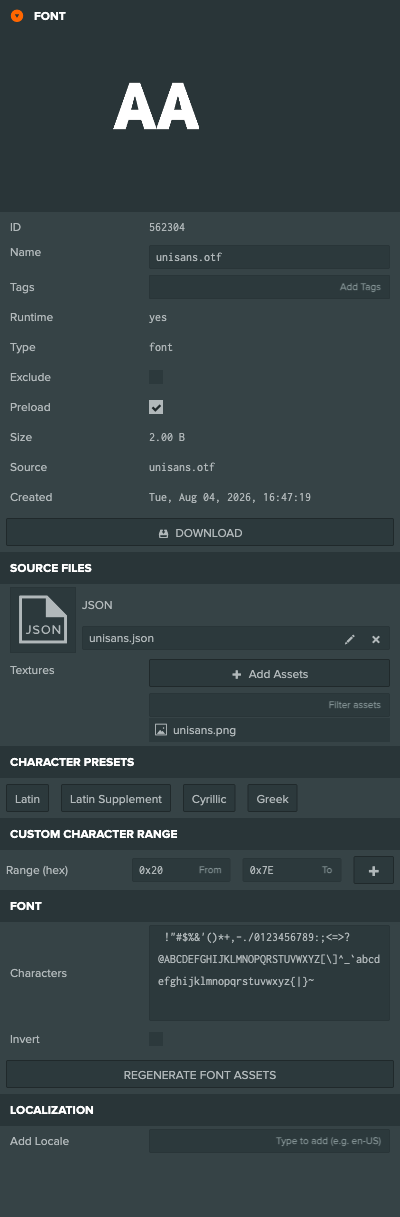
Source Files
The JSON descriptor and atlas textures the font is built from. Both are ordinary assets you can repoint with the asset pickers, which is useful for supplying an atlas generated elsewhere.
| Property | Description |
|---|---|
JSON | The MSDF descriptor. Repointing it rebuilds the font. |
Textures | The atlas pages, in the order the descriptor indexes them. Page one first, then page two, and so on. |
Two things to keep in mind when editing these by hand:
- Page order is meaningful. The descriptor addresses atlas pages by index, so a list in the wrong order renders the wrong glyphs. The picker appends new entries to the end and cannot reorder them, so if the order is wrong, regenerate the font to restore it.
- Don't share the atlas textures. They are reconfigured for MSDF sampling when the font loads — no sRGB, no mipmaps, linear filtering — so pointing them at a texture used elsewhere will change how that texture renders.
The panel warns you when the references cannot produce a usable font: nothing referenced, a JSON asset that is not a valid descriptor, or a page count that disagrees with the descriptor. A font with broken references renders blank rather than failing the load, so this warning is how you find out.
Character Presets
Click a preset to add its characters to the font. Presets add to the current selection rather than replacing it.
Custom Character Range
To include a specific range, enter its start and end in hex and click the + button to append it to the character selection.
Font
| Property | Description |
|---|---|
Characters | The characters generated into the font. If you only need digits, there is no need to include anything else — a smaller set means a smaller atlas. A character must exist in the source font to be included; any that don't are listed after regenerating. |
Invert | Inverts the generated atlas. Regenerate after changing it. |
Regenerate Font Assets
Click REGENERATE FONT ASSETS after changing the character selection or the Invert option. Generation runs in your browser and rewrites the existing JSON and texture assets in place, so references stay valid and the font's ID never changes — text elements using it keep working. Extra pages are created if the new character set needs them.
If the new set needs fewer pages than before, the surplus texture assets are left in the folder rather than deleted, in case you still want them, and the Editor tells you how many are now unreferenced. Delete them yourself if you don't.
Converting a font created before Editor-side generation
Fonts imported before the Editor generated its own atlases have no JSON or texture assets, so they show CONVERT TO REFERENCED FONT instead. Converting one generates the descriptor and atlas as separate assets and repoints the font at them, keeping its asset ID and every text assignment intact.
Conversion replaces the font's data and file and cannot be undone, so it asks first:
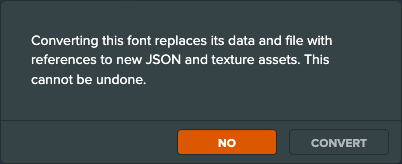
Until a font is converted, it keeps the Intensity property under a PROPERTIES panel:
| Property | Description |
|---|---|
Intensity | Boosts the value read from the signed distance field — 0 is no boost, 1 is maximum. Useful when a font's edges aren't clean at the default, or when rendering at small sizes. |
Fonts with JSON and texture references take their intensity from the descriptor instead, so the panel does not appear for them.